
Email Tracking Pixels: Implementation & Privacy
Email tracking pixels silently log your opens, location, and device. Learn how they work, what privacy changes mean for open rates, and how to protect your inbox.

What are email tracking pixels?
Email tracking pixels are tiny images that load when an email is opened, helping senders estimate opens, device context, and engagement. They are useful but imperfect because privacy protections can block, proxy, or inflate opens, so marketers should combine pixel data with clicks, bounces, complaints, and conversions.
Ever wonder how someone knows you opened their email? The answer’s probably sitting in that message right now.
An email tracking pixel is a tiny 1×1 transparent image embedded in HTML emails that silently reports back when you open a message. It captures your IP address, device type, email client, location data, and timestamp the moment your email loads images. Apple Mail Privacy Protection causes emails to appear opened, resulting in inflated open rates, which has shaken up how reliable this tracking really is.
These invisible web beacons work by requesting the pixel from a remote server. That simple image load triggers data collection without any visible notification to you.
Whether you’re a marketer trying to measure campaign performance or someone who values inbox privacy, understanding email tracking pixels matters. They’re everywhere in professional emails, newsletters, and sales outreach.
We’ll walk you through what tracking pixels actually are, how they collect your data, why businesses use them, and most importantly, how to detect and block them. You’ll also learn how recent privacy changes from Apple and Gmail have changed the tracking game.
What Are Email Tracking Pixels?
Think of email tracking pixels as the digital version of those “return receipt requested” stickers on old-school mail.
An email tracking pixel is essentially a 1×1 pixel image, usually a transparent GIF or PNG file, that gets embedded into the HTML code of an email. Because it’s only one pixel by one pixel, you can’t see it with your naked eye.
This invisible image lives on a remote server somewhere. Each pixel has a unique URL that identifies both the email campaign and the specific recipient.
When you open the email and your email client loads images, it requests that tiny pixel from the server. That request is what triggers the tracking.
The server logs the request and collects whatever data your email client sends along with it. This happens in milliseconds, completely behind the scenes.
Email tracking pixels are also called web beacons or spy pixels. The “spy pixel” name reflects growing privacy concerns about this silent surveillance method.
Unlike read receipts, which ask for your permission before notifying the sender, tracking pixels require no consent. They just work automatically when images load.
How Tracking Pixels Differ From Other Tracking Methods
Tracking pixels aren’t the only way senders monitor your email behavior.
Link tracking wraps URLs in redirects that log clicks before sending you to the actual destination. You’ll notice these if you hover over a link and see a long, unfamiliar domain.
Read receipts are the polite cousin of tracking pixels. They ask permission first, and most email clients let you decline.
Cookies track your behavior across websites after you click through from an email. They’re more powerful but require you to actually visit a website first.
The sneaky thing about tracking pixels is their invisibility and automation. You don’t click anything or approve anything.
How Email Tracking Pixels Work
The technical mechanism behind tracking pixels is surprisingly simple.
When a marketer creates an email campaign, their email platform automatically inserts an image tag into the HTML. It looks something like this: <img src=”tracking-server.com/pixel/unique-id-12345″ width=”1″ height=”1″>.
That unique ID in the URL identifies you specifically. It connects to the sender’s database records about your email address and campaign.
Your email client treats this like any other image. When you open the email, it sends a GET request to that server URL to load the image.
The server receives the request and logs it immediately. Along with that request, your email client sends metadata like your IP address, user agent string (which reveals your device and email client), and timestamp.
The tracking server processes this information and updates the sender’s analytics dashboard. They now know you opened the email, roughly where you’re located, what device you used, and exactly when you opened it.
What Happens Behind the Scenes
The server-side magic is where tracking pixels get their power.
Most email marketing platforms like Mailchimp, HubSpot, or ActiveCampaign handle this automatically. They host the tracking pixel on their own servers.


When the pixel request hits their server, it runs through a logging script. This script captures the request details and matches the unique ID back to their campaign database.
The server then delivers the actual 1×1 transparent pixel image. Your email displays it (though you’ll never notice), and the tracking is complete.
Some advanced systems correlate this open data with other actions. If you later click a link in that email or visit their website, they can connect those behaviors to the initial open.
Server-side tracking involves capturing conversion events on their servers, which provides more reliable data than client-side tracking alone.
Why Plain Text Emails Are Tracking-Proof
Plain text emails can’t contain tracking pixels because they don’t support HTML or images.
If you set your email client to “plain text only” view, it strips out all HTML formatting. That includes image tags and tracking pixels.
This is why some privacy-conscious folks prefer plain text emails. They’re faster to load and completely tracking-free.
The tradeoff? No formatting, no images, no fancy layouts. Just text.
What Data Do Tracking Pixels Collect?
Email tracking pixels gather more information than most people realize.
The most basic data point is whether you opened the email at all. This creates the “open rate” metric that marketers obsess over.
Your IP address gets logged with every pixel request. This reveals your approximate geographic location, down to the city level in many cases.
Gmail’s image caching mechanism strips away recipient IP metadata, which has reduced the accuracy of location tracking for Gmail users specifically.
The timestamp shows exactly when you opened the email. Marketers use this to figure out the best times to send future campaigns.
Your device type and email client get identified through the user agent string. Senders learn whether you’re reading on iPhone Mail, Gmail mobile app, Outlook desktop, or something else.
Some sophisticated systems track how many times you open the same email. Multiple opens might signal higher interest.
Data Tracking Pixels Cannot Collect
Despite their capabilities, tracking pixels have real limitations.
They can’t measure how long you spent reading the email. Once the pixel loads, its job is done.
They don’t know if you actually read the content or just glanced and closed. Comprehension and engagement remain mysteries.
They can’t access your email address directly from the client. The sender already knows your email because they sent the message.
Tracking pixels can’t see other emails in your inbox or any personal information stored on your device.
Data Point | What It Reveals | Accuracy Level |
|---|---|---|
IP Address | Geographic location, ISP | High (city-level) |
Timestamp | Exact open time, timezone | Very High |
Device Type | Desktop vs mobile, OS | High |
Email Client | Gmail, Outlook, Apple Mail, etc. | High |
Reading Time | How long you read | Not tracked |
Why Are Tracking Pixels Used?
Businesses aren’t tracking your email opens just for fun. They have specific goals.
Email open rate is the foundation metric for email marketing performance. According to MailerLite’s 2025 benchmarks, the average email open rate across all industries was 43.46%, which gives marketers a benchmark to measure against.

Marketers use open tracking to test subject lines. If Subject Line A gets a 25% open rate and Subject Line B gets 45%, they know which approach works better.
Sales teams track opens to gauge prospect interest. If someone opens your pitch email five times, they’re probably more interested than someone who never opened it.
Customer success teams monitor whether users are actually receiving and opening their support emails and product updates.
Marketing Campaign Optimization
Email tracking pixels power most email marketing analytics dashboards.
Platforms like Klaviyo, ConvertKit, and Drip automatically include tracking pixels in every campaign.
Marketers segment their lists based on engagement data. People who open emails regularly get different content than those who never open.
Send time optimization relies on open tracking data. If you typically open emails at 7am, smart systems will schedule future emails around that time.
Click-to-open rates averaged 6.81% in 2025, which helps marketers understand not just who opens, but who takes action.
A/B testing uses open tracking to determine winning variants. Test two email versions on a small segment, then send the winner to everyone else.
Sales and Lead Scoring
Sales teams use email tracking as part of their lead scoring models.
A prospect who opens your proposal email three times in one day might be sharing it with their team. That’s a buying signal worth following up on.
CRM systems like Salesforce and Pipedrive integrate email tracking data into contact records.
Sales reps get real-time notifications when prospects open emails. This tells them when to make a follow-up call.
Reply rates for outbound B2B emails typically range from 3-8%, so tracking opens helps sales teams focus on engaged prospects.
Deliverability Monitoring
Email service providers track opens to maintain sender reputation.
Low open rates signal to inbox providers that recipients don’t want your emails. This hurts your deliverability over time.
At mailfloss, we see how email list quality directly impacts engagement metrics. Invalid email addresses drag down open rates because bounces and inactive accounts never open anything.
Tracking pixels help identify dead addresses that should be removed from your list. If an address hasn’t opened an email in six months, it’s probably abandoned.
This creates a feedback loop. Better list hygiene leads to higher open rates, which improves sender reputation, which increases inbox placement.
Privacy Concerns and Implications
Here’s where things get uncomfortable for people who value their inbox privacy.
Most recipients have no idea when they’re being tracked. There’s no visual indicator, no notification, no consent dialog.
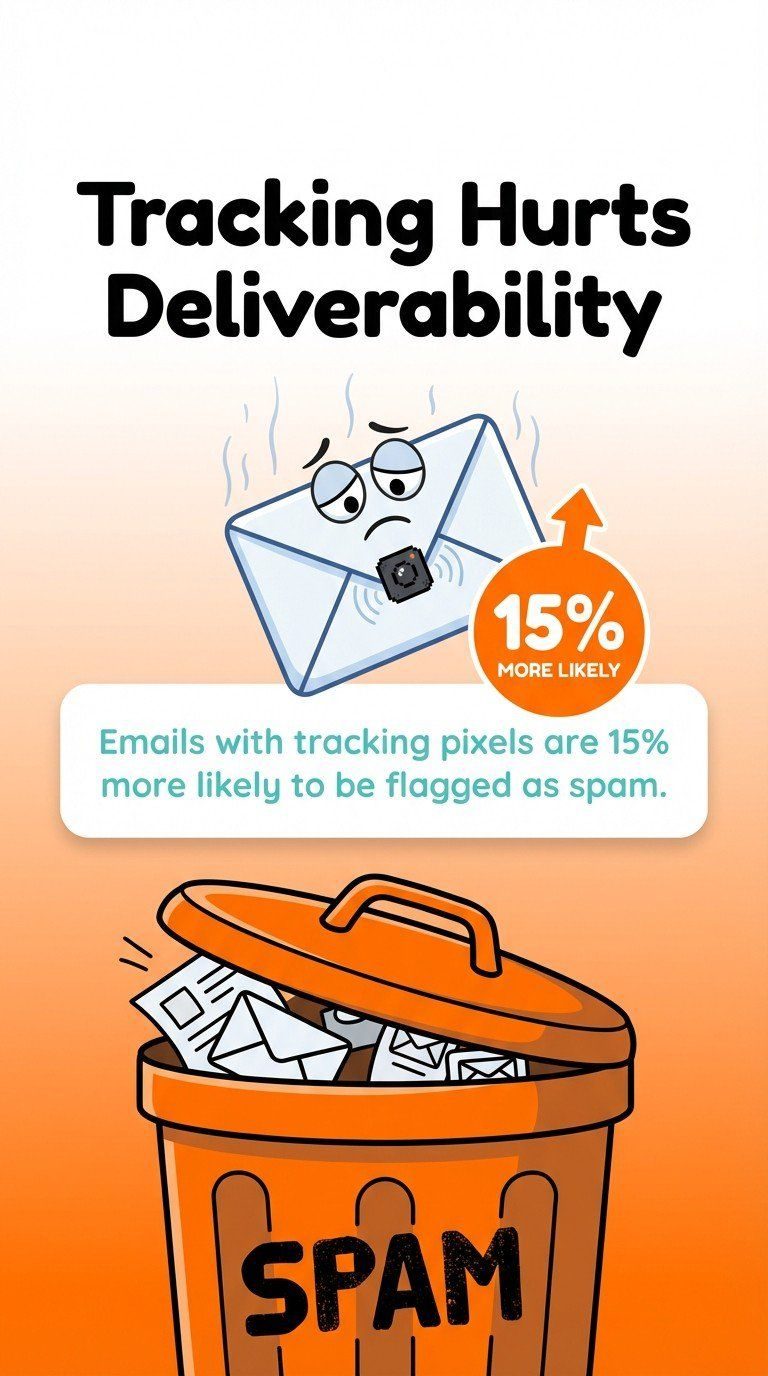
Privacy advocates call tracking pixels a form of surveillance. You’re being monitored without your knowledge or permission.
The data collected through tracking pixels can reveal sensitive information. Your location at the time you opened an email could expose where you live or work.
Timestamp data can reveal your daily routines and habits. If you always open emails between 6-7am, that’s information about your schedule.
Legal and Regulatory Considerations
Privacy regulations are starting to catch up with email tracking practices.
GDPR in Europe requires “lawful basis” for processing personal data. Some privacy experts argue that tracking pixels require explicit consent.
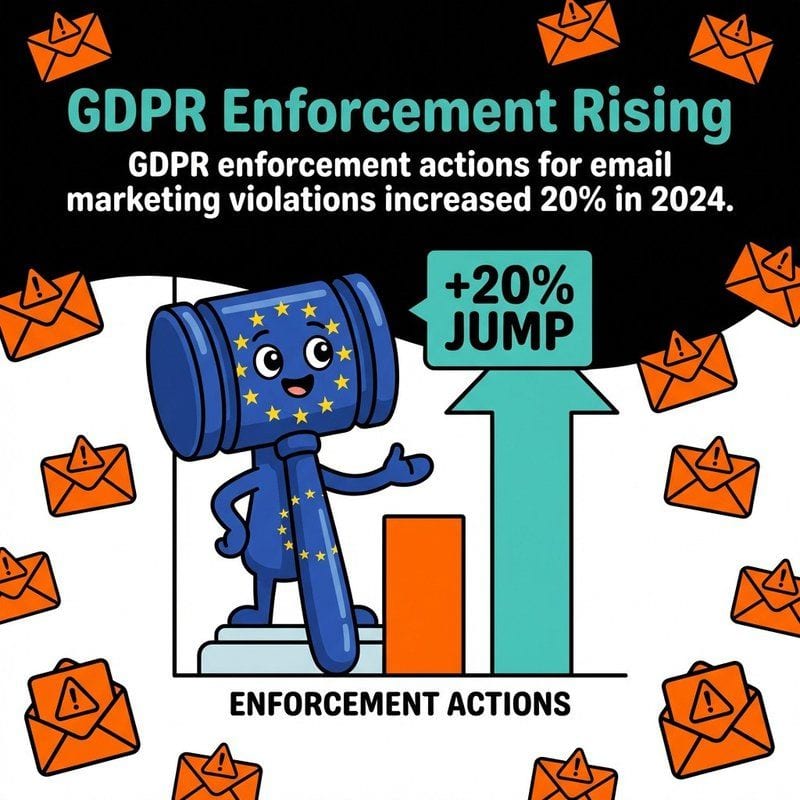
The California Privacy Rights Act (CPRA) gives Californians the right to know what personal information businesses collect about them. Email tracking data falls under this.
Privacy regulations have imposed stringent consent requirements globally, forcing businesses to rethink their tracking strategies.
Some companies now include tracking disclosures in their privacy policies. Others are moving away from individual-level tracking entirely.
Ethical Tracking Practices
Not all email tracking is created equal ethically speaking.
Aggregate tracking (overall open rates for a campaign) feels less invasive than individual tracking (exactly when John Smith opened the email).
Transactional emails probably shouldn’t include tracking pixels. Your password reset email doesn’t need to spy on you.
Sales emails with tracking pixels feel particularly invasive. Being notified the instant a prospect opens your email creates pressure.
Best practice? Be transparent. Some companies now include a line in their email footer: “This email contains tracking technology to measure engagement.”
Give people options. Include instructions for disabling image loading if they want to prevent tracking.
How to Detect Tracking Pixels in Your Emails
Want to know if an email is tracking you? You have several detection methods.
The most reliable way is to inspect the email’s HTML source code. Most email clients let you view the raw HTML.
Look for image tags with suspicious characteristics. Tracking pixels typically have width=”1″ height=”1″ or style attributes that set dimensions to 1 pixel.
The image URL usually points to an external domain you don’t recognize. Common tracking services use domains like track.something.com or pixel.something.com.
Browser extensions make detection easier and automatic.
Detection Tools and Browser Extensions
Several privacy tools automatically flag tracking pixels in your emails.
Ugly Email is a free Chrome extension that adds a small eye icon next to emails containing tracking pixels in Gmail.
PixelBlock blocks tracking pixels entirely and shows you which emails attempted to track you.
Privacy Badger from the Electronic Frontier Foundation blocks trackers across all websites and web-based email clients.
For Apple Mail users, the built-in Mail Privacy Protection feature proxies all tracking pixels through Apple’s servers. This effectively breaks individual tracking.
Manual HTML Inspection
If you prefer the hands-on approach, here’s how to check manually.
In Gmail, click the three dots menu next to the reply button and select “Show original.” This displays the raw email source.
Search for <img tags in the HTML. Look specifically for images with 1×1 dimensions or display:none styling.
Check the src attribute of suspicious images. If it points to a tracking domain with long random strings, that’s probably a tracking pixel.
Common tracking patterns include URLs with parameters like ?id=, ?recipient=, or long base64-encoded strings.
Detection Method | Difficulty Level | Reliability |
|---|---|---|
Browser Extension | Easy | High |
HTML Inspection | Medium | Very High |
Plain Text View | Easy | Medium |
Disable Images | Easy | High |
How to Block Email Tracking Pixels
Once you know you’re being tracked, you probably want to stop it.
The most effective method is disabling automatic image loading in your email client. No images means no tracking pixels.
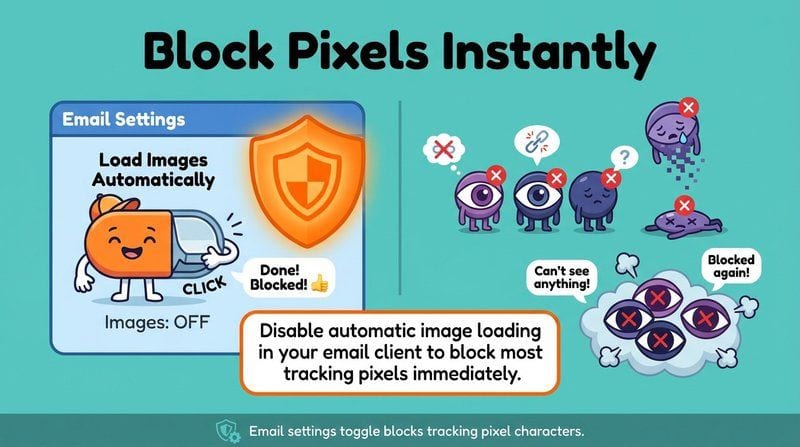
In Gmail, go to Settings → General → Images and select “Ask before displaying external images.” You’ll manually approve images on a per-email basis.
For Apple Mail users on iOS or macOS, Mail Privacy Protection isn’t on automatically — you enable it by turning on Protect Mail Activity in Mail settings. According to Apple, it hides your IP address and prevents senders from seeing whether you’ve opened their email.
Outlook users can go to File → Options → Trust Center → Trust Center Settings → Automatic Download and check “Don’t download pictures automatically in HTML email.”
Privacy-Focused Email Clients
Some email clients prioritize privacy over tracking convenience.
Tutanota takes a similar approach with built-in tracking protection and end-to-end encryption.
Mailbird includes privacy settings that block tracking pixels while still displaying other email content normally.
The tradeoff? You might miss out on legitimate images that make emails easier to read and more visually appealing.
VPN and Proxy Solutions
Virtual private networks can help mask your tracking data even if pixels load.
Virtual private networks (VPNs) mask users’ IP addresses, which prevents tracking pixels from revealing your true location.
When you use a VPN, the tracking pixel sees the VPN server’s location instead of yours. This anonymizes your geographic data.
Email proxy services route your email through intermediate servers that strip tracking elements before delivery.
Privacy-focused email forwarding services like SimpleLogin or AnonAddy can add another layer of protection.
The Impact of Privacy Changes on Email Tracking
Recent privacy features have seriously disrupted traditional email tracking.
Apple’s Mail Privacy Protection (MPP), launched in September 2021, changed everything for iOS and macOS users.
MPP pre-loads all tracking pixels through Apple’s proxy servers before you even open the email. This makes every email appear “opened” to the sender, regardless of whether you actually read it.
The result? Apple Mail Privacy Protection causes emails to appear opened, resulting in inflated open rates.

For marketers, this means open rates from Apple Mail users are no longer reliable indicators of engagement.
Gmail’s Image Caching System
Gmail has used image caching since 2013, but many people don’t understand its privacy implications.
When you open an email in Gmail, images don’t load directly from the sender’s server. Gmail downloads them first, caches them on Google’s servers, and serves them to you from there.
This approach has two effects. First, it speeds up email loading because cached images are closer to you.
Second, Gmail’s image caching mechanism strips away recipient IP metadata. The tracking pixel logs Google’s server IP instead of yours.
Senders still know you opened the email, but they can’t determine your real location or ISP.
What These Changes Mean for Marketers
Email marketers are adapting to this new privacy-first reality.
Many are shifting focus from open rates to click-through rates and reply rates. These metrics require active engagement that can’t be faked by privacy features.
Some platforms now offer “adjusted open rates” that try to account for MPP inflation. These algorithms attempt to identify genuine opens versus automatic pre-loads.
Progressive marketers are moving toward more holistic engagement scoring. Instead of relying on one metric, they track opens, clicks, replies, website visits, and purchase behavior together.
At mailfloss, we’ve seen clients focus more on list quality as tracking becomes less reliable. Clean, engaged lists matter more than ever when you can’t perfectly measure engagement.
Alternatives to Tracking Pixels for Measuring Engagement
Smart marketers aren’t putting all their eggs in the tracking pixel basket anymore.
Link click tracking remains reliable because it requires intentional action from recipients. You can’t accidentally click a link.
Reply rate tracking measures actual conversations started. If someone replies to your email, that’s genuine engagement you can trust.
Website analytics tools show when email recipients visit your site after clicking through. This tracks downstream behavior beyond the email itself.
Survey responses and direct feedback provide qualitative engagement data that tracking pixels never could.
Server-Side Tracking Methods
Advanced tracking systems are moving beyond simple pixels.
Server-side conversion tracking logs actions on your website or app after someone interacts with your email. This provides more reliable data than client-side pixels.
UTM parameters in email links let you track campaign performance in Google Analytics without requiring a tracking pixel.
Engagement scoring based on multiple signals (clicks, time on site, pages viewed, purchases) gives you a fuller picture than opens alone.
First-party data collection through forms, preference centers, and account activity provides explicit signals about customer interests.
Privacy-Respectful Analytics
Some companies are embracing privacy-friendly tracking alternatives.
Aggregate analytics report campaign-level performance without tracking individuals. You learn that 45% of recipients engaged, not which specific people opened.
Anonymized tracking strips personal identifiers from engagement data. You see patterns without connecting them to specific email addresses.
Permission-based tracking asks recipients to opt in. Some loyalty programs offer perks in exchange for allowing detailed engagement tracking.
The future probably involves less individual surveillance and more aggregate measurement. Privacy regulations are pushing the entire industry in this direction.
Best Practices for Both Senders and Recipients
Whether you’re sending or receiving emails, you can make better choices about tracking.
For senders, transparency should be your starting point. Tell people you’re tracking opens, either in your privacy policy or email footer.
Only track when you have a legitimate business reason. Your monthly newsletter needs engagement metrics. Individual customer support replies probably don’t.
Respect privacy preferences. If someone asks to be excluded from tracking or has their images disabled, honor that choice.
For recipients, take control of your inbox privacy with these practical steps.
Sender Best Practices
Ethical email tracking starts with intention and transparency.
Use tracking for campaign optimization, not individual surveillance. Focus on improving your content, not monitoring specific people’s behavior.
Segment based on engagement patterns, not individual tracking data. If people in a segment aren’t engaging, adjust your approach for that group.
Consider excluding sensitive email types from tracking. Password resets, account notifications, and personal correspondence don’t need tracking pixels.
Integrate your email platform with list cleaning tools like mailfloss. We automatically remove invalid addresses that skew your engagement metrics and hurt deliverability.
Our system works in the background with platforms like Mailchimp, HubSpot, and ActiveCampaign to keep your lists accurate. Better data quality means more reliable engagement metrics, even as tracking becomes less precise.
Recipient Protection Strategies
Protecting your email privacy takes just a few minutes of setup.
Disable automatic image loading in your primary email client. This single setting blocks most tracking pixels immediately.
Use a VPN when checking email on public WiFi. This masks your location even if tracking pixels load.
Consider using different email addresses for different purposes. Keep a private address for personal contacts and a separate one for newsletters and marketing.
Review your email client’s privacy settings quarterly. New features and updates might offer better protection options.
Install a tracking blocker extension if you use web-based email. Tools like PixelBlock or Ugly Email work seamlessly with Gmail.
Quick Privacy Win: Switching to plain text view in your email client immediately blocks all tracking pixels. Go to your settings and look for “Plain text” or “Disable HTML” options. You’ll lose formatting, but you’ll gain complete tracking protection.
Frequently Asked Questions
What are tracking pixels in emails?
Tracking pixels in emails are tiny, invisible 1×1 transparent images (usually GIF or PNG) embedded in the HTML of an email. When you open the email and your client loads images, it requests the pixel from a remote server. This logs the open event, timestamp, device, and location data without your knowledge.
Can you put a tracking pixel in an email?
Yes, tracking pixels can be embedded in emails by inserting a 1×1 transparent image tag into the HTML code. Most email marketing tools like Mailchimp or HubSpot automate this process. Browser extensions also make it easy for individual Gmail users to add tracking pixels to their outbound messages.
How to tell if email has tracking pixel?
Check the email’s raw HTML source for suspicious 1×1 transparent image tags pointing to external tracking domains. Browser extensions like Ugly Email or PixelBlock automatically detect and flag tracking pixels. You can also disable auto-image loading, view emails in plain text, or inspect network requests in webmail.
Do tracking pixels work if images are disabled?
No, tracking pixels require images to load. If you’ve disabled automatic image loading in your email client, tracking pixels can’t fire. The image request never reaches the tracking server, so no data gets collected.
Can tracking pixels see what I do after opening an email?
Tracking pixels only register the initial email open. They can’t track what you do afterward unless you click a link that contains additional tracking parameters. To monitor post-open behavior, senders need to combine tracking pixels with link tracking and website analytics.
We write from the practical side of email list cleaning: what helps marketers keep real subscribers, reduce bounces, and avoid turning hygiene into another recurring chore.