7 Best Kit Integrations for Creator Workflows (2026)
Compare 7 Kit integrations by subscriber trigger, tag behavior, automation fit, and cleanup risk. Choose a creator stack that keeps Kit data useful today.

What are the best Kit integrations?
The best Kit integrations match the point where subscriber data enters or changes: mailfloss for automated verification and recurring cleanup, Thinkific or Podia for course buyers, Patreon for memberships, Luma for events, HubSpot for CRM handoffs, and KitBoard for tag-based sales follow-up. Developers and AI agents can pair Kit automation with the first-class mailfloss real-time API.
The best Kit integrations match the point where subscriber data enters or changes: mailfloss for automated verification and recurring cleanup, Thinkific or Podia for course buyers, Patreon for memberships, Luma for events, HubSpot for CRM handoffs, and KitBoard for tag-based sales follow-up. Developers and AI agents can pair Kit automation with the first-class mailfloss real-time API.
Kit integrations are most useful when they improve a specific subscriber journey, not when they merely add another logo to your stack. Kit keeps subscribers in one list and organizes them with Forms, Tags, Segments, custom fields, purchase records, and automation events. That makes the connection mechanic unusually important: the app should write the right signal to the right subscriber record, at the right time.
This guide compares seven best-fit choices for distinct creator workflows. There is no universal winner. A course creator, membership publisher, event host, sales-led consultant, and newsletter operator all need different subscriber signals.
The best Kit integrations at a glance
Integration | Best fit | What enters or changes in Kit | Useful automation signal | Main setup risk |
|---|---|---|---|---|
mailfloss | Recurring list hygiene | Verified, corrected, or actioned Kit contacts | New-signup verification and scheduled cleanup | Applying an aggressive cleanup action before reviewing the rules |
Thinkific | Course enrollment and progress | Students, course Tags, signup date, and progress fields | Enrollment or course-specific Tag | Renaming generated fields that the sync may recreate |
Patreon | Paid memberships | Member records, tier Tags, purchases, and unsubscribe events | New member or new unsubscribe | Running the current and legacy connections together |
Luma | Events and workshops | Registrants, event Tags, and ticket purchases | Event Registration | Expecting multiple calendars from one connection |
HubSpot | CRM and sales handoffs | Two-way contacts, fields, purchases, deals, or leads | Kit activity that creates a CRM record | Contact-tier cost, broad sync scope, or duplicate purchases |
Podia | Courses, products, and communities | Customers or members assigned to selected Kit Tags | Product, form, or plan Tag | Assuming the sync is retroactive or form-specific |
KitBoard | A lightweight sales view | Existing Kit subscribers selected by Tags | A Tag that represents pipeline eligibility | Treating a manual Tag as a live, condition-based Segment |
How should you choose a Kit integration?
Use a trigger–record–response check before installing anything:
- Trigger: What happened outside Kit? Examples include a Thinkific enrollment, Patreon cancellation, Luma registration, HubSpot contact creation, or Podia purchase.
- Record: What should change on the Kit subscriber? Look for a new subscriber, a stable source Tag, a product-specific Tag, a custom field, purchase history, or an app event.
- Response: What should Kit do next? That might be starting an Email Sequence, branching a Visual Automation, excluding a buyer from a pitch, creating a HubSpot deal, or holding a risky address out of future sends.
This framework matters because a connection is only as useful as the subscriber state it leaves behind. A Tag is a fixed label until something removes it. A Segment is a fluid group calculated from conditions. If your workflow needs to react immediately to a purchase or cancellation, an event node or maintained product Tag is usually more reliable than a broad Segment that hides several conditions.
The roster below maps each app’s incoming event to the exact Kit record, automation signal, and failure mode. That trigger–record–response view lets you inspect the data path before connecting your live audience, rather than choosing from app names alone.
1. mailfloss: best for recurring Kit list hygiene
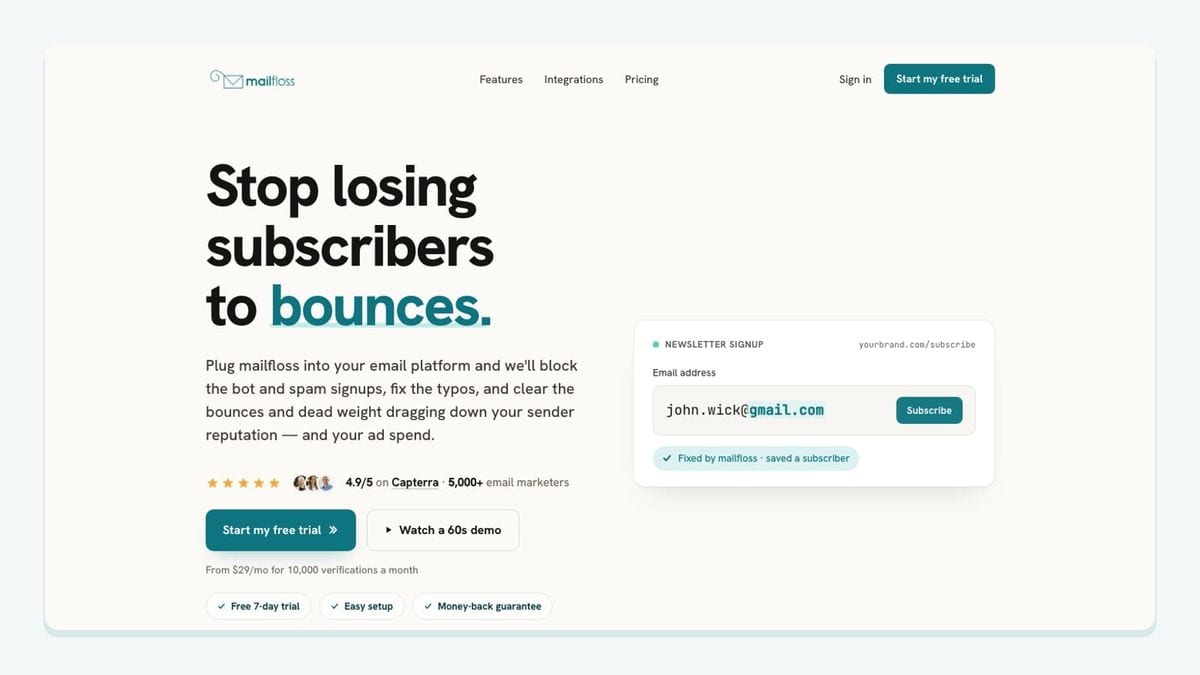
mailfloss is the best fit when every Kit broadcast depends on the quality of the underlying email addresses. It connects directly to Kit, lets you choose the newsletter audiences you want watched, and starts the first sync. Each connection can use its own cleanup rules, which is useful when a main newsletter and a higher-value customer audience should not receive identical treatment.
The workflow is specific to Kit. Typo Fixer recognizes safe typo patterns such as gmial.com and corrects recoverable contacts. Instafloss checks new signups in real time where they enter the marketing system. Autofloss runs daily against new Kit contacts, while Decay Protection re-verifies older contacts on a schedule. Configured actions are then written back to Kit without an export–verify–import loop.
Start conservatively: connect one Kit newsletter audience, enable Typo Fixer and daily cleanup, review the first results, and then choose whether invalid, disposable, or risky contacts should be reviewed, updated, suppressed, or removed. Add real-time protection to the Forms or signup paths responsible for the largest volume of new subscribers. This sequence protects the list without treating every verification result as the same business decision.
The Kit connection is not the only way to use mailfloss. Product teams can use the first-class email verification API for developers and AI agents for real-time product-side checks while the native connection handles recurring Kit cleanup. See the full mailfloss integration for Kit and Decay Protection for older contacts.
Best-fit rule: choose mailfloss when bad addresses can enter through several Kit-facing sources and you need verification to recur after signup, not just during a one-time CSV project.
2. Thinkific: best for course enrollment and progress
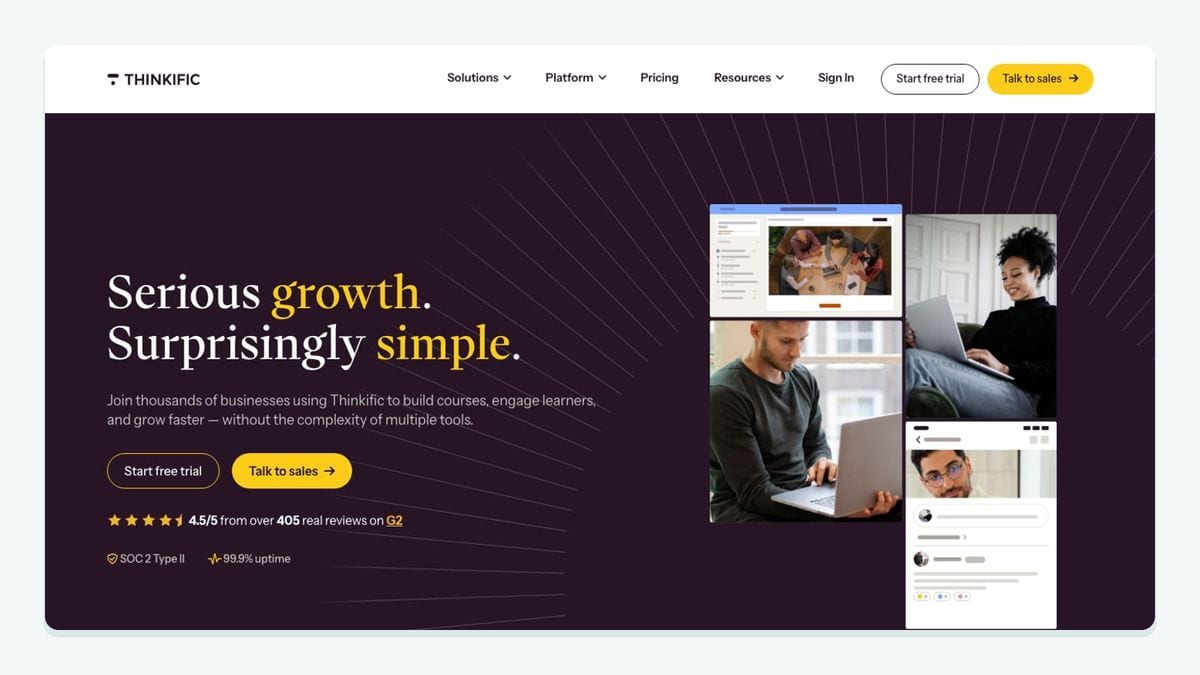
Thinkific is the strongest fit in this roster when course activity should shape email follow-up. According to Kit’s Thinkific documentation, enrolling in a free or paid course can create a new Kit subscriber or update an existing one. The app creates an overall Thinkific Tag, a user Tag, and course-specific Tags. It can also add a signup-date field and a course-progress field.
That record structure supports genuinely useful Kit automations. A course-specific Tag can start onboarding for the correct program instead of sending every student through one generic welcome sequence. A progress field can help form a Segment for students who have stalled, while the overall customer Tag can exclude existing buyers from a launch pitch. Thinkific courses can also be embedded in Kit Broadcasts.
The limitation is equally important: Kit warns that generated Tags or custom fields can be recreated during a later sync if their names are edited. Treat those generated names as integration infrastructure. Build friendly Segments or internal documentation around them instead of renaming the source fields casually.
A practical setup is to enroll a test student, open that subscriber in Kit, record every generated Tag and field, and only then connect the Tag to a Visual Automation. Check both a new email address and an address already present in Kit. The second test confirms whether the app updates the existing subscriber as expected instead of leaving your automation logic dependent on a new-record assumption.
Best-fit rule: choose Thinkific when enrollment, course identity, or progress should change what a subscriber receives in Kit.
3. Patreon: best for membership lifecycle email
Patreon is the best fit for creators who need Kit to distinguish a newsletter subscriber from an active paying member. The current Kit and Patreon app can create or update Kit subscribers, apply a general Patreon Tag, add tier-specific Tags, sync membership purchases, and emit automation events when someone becomes a member or unsubscribes.
Those mechanics enable three different responses. A New member event can start a welcome Email Sequence. A tier-specific Tag can branch benefits or onboarding by membership level. A New unsubscribe event can begin a feedback or win-back path without pretending the person has vanished from the wider newsletter audience. When someone leaves a tier, the current app removes that tier Tag, which keeps tier-based targeting more useful than a Tag that only ever accumulates.
Patreon also adds live membership-tier blocks to Kit emails. That is useful when the membership offer itself belongs inside a Broadcast, but it is separate from the underlying subscriber sync. Verify both: preview the content block before sending and inspect the Tags or purchase data on the subscriber record.
The migration risk is specific and material. Kit warns that keeping the legacy Patreon integration connected while installing the current app may duplicate purchase records. Document the legacy Tags, custom fields, Segments, and automations first. Disconnect the legacy integration, install the current app, decide whether to import historical data, and then update filters to the current Tag and event model.
Best-fit rule: choose Patreon when membership starts, tier changes, purchases, and cancellations need different Kit responses.
4. Luma: best for event registration and follow-up
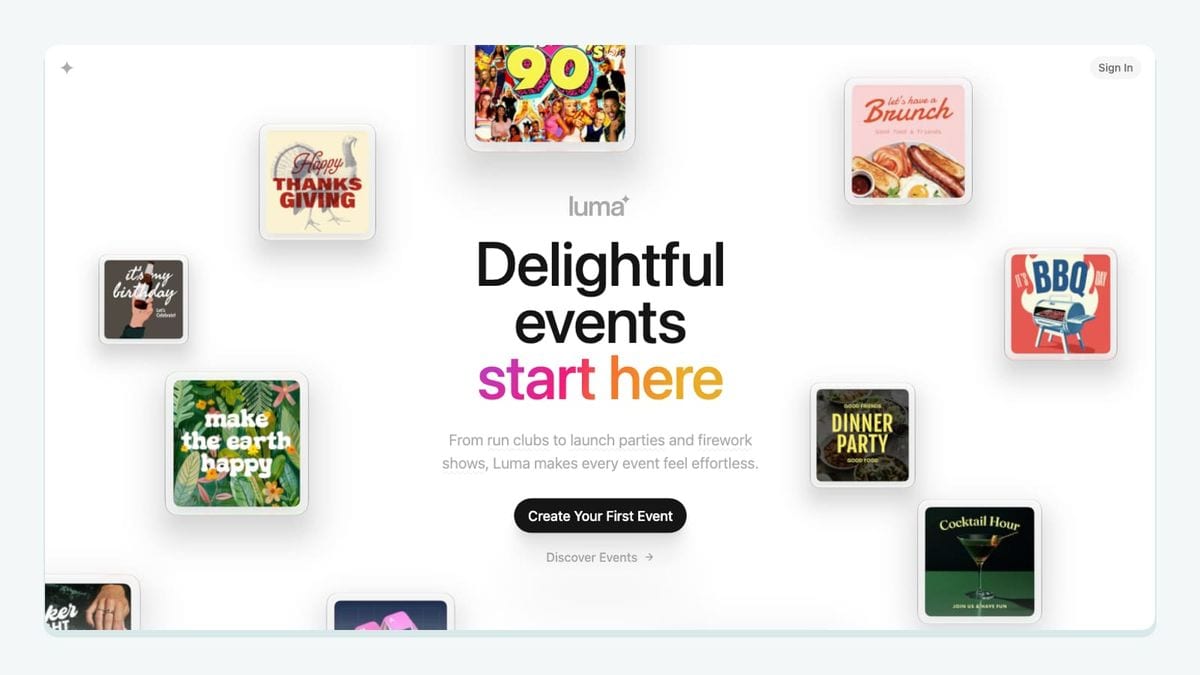
Luma is built for a clean event-to-email handoff. The Kit and Luma app can create or update a Kit subscriber when someone registers, add a general Luma Tag and event-specific Tags, sync paid-ticket purchase data, and provide an Event Registration entry point in Visual Automations.
That gives an event host a concrete Kit workflow: registration starts a confirmation or preparation sequence; an event-specific Tag identifies the correct workshop; purchase data distinguishes paid registrants; and a post-event sequence can continue the relationship after the session. Kit can also insert a Luma event block containing the event name, URL, time, location, and host into an email.
The setup has a boundary that generic roundups often skip. Each connection supports one Luma calendar, and the calendar must meet Luma’s documented plan requirement. If you operate unrelated event brands or calendars, decide whether they belong in separate connections or whether one Kit account is the wrong aggregation point before building automations.
Test the actual registration path. Register with a new address and confirm that the expected event Tag appears. Register with an address already in Kit and confirm that the existing subscriber is updated. Then check whether your Event Registration entry point is scoped to any event, one event, or a selected set. “Any event” is convenient, but it can send a workshop-specific sequence to the wrong registrant if the follow-up does not branch again.
Best-fit rule: choose Luma when event registration is a primary subscriber event and the calendar boundary fits your operation.
5. HubSpot: best for CRM handoffs from Kit
HubSpot is the best fit when Kit owns creator email while a sales team needs CRM records and pipeline actions. The current Kit and HubSpot app supports two-way contact sync, optional two-way purchase sync, custom field mapping, and Kit Visual Automation actions that create a HubSpot Deal or Lead.
Unlike a simple lead-capture connector, this app can move data in both directions. HubSpot contacts can become Kit subscribers, and Kit subscribers can become HubSpot contacts. Kit applies a HubSpot source Tag to imported contacts. A creator can then use a Kit behavior or Tag to create a deal in a selected HubSpot pipeline without forcing every newsletter subscriber into the same sales process.
The flexibility creates three risks. First, the contact sync is not granular by HubSpot list or Kit Segment; the documented controls are broad on/off choices. Second, HubSpot marketing-contact tiers may make newly synced contacts commercially significant. Third, purchase data can duplicate when the same commerce platform feeds both HubSpot and Kit independently.
Before enabling sync, draw the source of truth for contacts and purchases. Pause Kit automations that react to new subscribers, enable only the required data type, import a small historical sample if needed, and inspect the HubSpot Tag, mapped fields, subscription state, and purchase records. Only then enable the New Deal or New Lead action. Note that HubSpot plan requirements differ for deal and lead objects.
Best-fit rule: choose HubSpot when qualified Kit activity should reach a CRM, and you can govern two-way contact scope and purchase ownership.
6. Podia: best for product and community Tags

Podia is a practical fit for creators whose courses, downloads, or community plans should trigger Kit email. The Podia integration documentation explains that Podia users can sync to Kit when they subscribe through a Podia email form, buy a product, or join a community plan. Each path assigns a selected Kit Tag, which can then start a Visual Automation or Email Sequence.
The mechanic differs by object. Product buyers can receive a Tag selected on that product. Community members can receive a Tag selected for their plan after completing account setup. Podia email-form subscribers receive the Tag selected in the email integration settings.
There are two limitations worth designing around. The integration is not retroactive for activity that occurred before connection, so an existing buyer will not automatically appear merely because the app is now enabled. Podia’s documented email-form setting also uses one selected Kit Tag across its email forms rather than a different Tag for each form. If form-level source attribution matters, use Kit Forms or another capture path that preserves that distinction.
Create Tags before connecting Podia, name them by durable business event, and test one form submission, product purchase, and community signup separately. Confirm that joining a community plan adds the expected Tag, but do not assume leaving the community removes it; Kit’s documentation says that Tag is added on joining and is not automatically removed on departure.
Best-fit rule: choose Podia when selected product or community Tags are enough to drive the Kit journey and you can handle historical contacts separately.
7. KitBoard: best for a Tag-based sales view
KitBoard is the narrowest choice here, which is exactly why it can be useful. Kit’s apps and integrations overview describes it as a kanban-style sales-pipeline view that pulls in Kit subscribers carrying Tags you select.
That connection mechanic makes KitBoard appropriate for a creator with a modest consulting, coaching, sponsorship, or partnership pipeline already represented by Tags in Kit. For example, a Visual Automation can apply a “Sales conversation” Tag after a subscriber submits a qualifying Form or clicks a high-intent link. KitBoard can then surface those tagged subscribers in a board without replacing the underlying Kit subscriber record.
The important distinction is that a Tag is a fixed label, while a Segment is a fluid group calculated from conditions. If your “qualified” state can become false, define the action that removes or replaces the Tag. Otherwise, the board may retain people whose current behavior would no longer place them in a qualification Segment.
Test the full lifecycle: add the source Tag, confirm the subscriber appears, change the pipeline state, and decide which system writes the next Kit Tag. Avoid creating two competing status vocabularies—one in Kit and another on the board—unless you have documented how they synchronize.
Best-fit rule: choose KitBoard when Tags already represent pipeline eligibility and you need a visual work queue rather than a full two-way CRM.
How do you connect a Kit stack without triggering the wrong emails?
Start with one subscriber journey and introduce integrations in dependency order.
- In Kit, document the Form, Tag, Segment, custom field, purchase record, or app event that will act as the source signal.
- Search existing Visual Automations and Rules for that signal. Pause any workflow that should not run during a historical import or test.
- Install the app from Kit’s Apps area or follow the documented third-party authorization flow.
- Use a test address that is not in Kit, then repeat with one that already exists. The two tests reveal whether the app creates and updates records correctly.
- Inspect the subscriber profile before enabling downstream email. Confirm source Tags, product or event Tags, fields, purchases, and subscription status.
- Activate one automation, watch the result, and only then expand the sync or import historical data.
- Connect automated list-cleaning features after the entry paths are understood, so new and older Kit contacts receive the verification treatment intended for that audience.
This order keeps the app roster legible. Thinkific, Patreon, Luma, HubSpot, and Podia explain why a subscriber changed; KitBoard makes a selected Tag operational; mailfloss addresses whether the email itself remains safe to use. Those jobs complement one another instead of competing for ownership of the same field.
Frequently asked questions
Which Kit integration should I install first?
Start with the integration attached to your most important subscriber event. Use mailfloss if list quality affects every broadcast, Thinkific or Podia if course enrollment drives revenue, Patreon for memberships, Luma for events, HubSpot for sales handoffs, or KitBoard when Kit Tags already represent pipeline stages.
Do Kit integrations create separate email lists in Kit?
Kit keeps subscribers in one list and organizes them with Forms, Tags, Segments, custom fields, purchase records, and automation events. An integration may add or update a subscriber, apply a source or product Tag, or write purchase data. Audit those changes before attaching a Visual Automation so an import does not start the wrong sequence.
Can installing a Kit integration trigger an existing automation?
Yes, when the integration adds a subscriber to a Form or Tag used as an entry point, or emits a supported app event. Before a historical import or two-way sync, pause the affected Visual Automations and Rules, import a small sample, inspect the resulting Tags and fields, and then resume the workflow.
How does mailfloss work with Kit?
mailfloss connects to selected Kit newsletter audiences, verifies contacts, fixes recognized typos, applies configured cleanup actions, checks new signups in real time, and re-checks older contacts on a schedule. The connection handles recurring Kit hygiene, while developers and AI agents can use the first-class mailfloss real-time API for product-side verification.
We write from the practical side of email list cleaning: what helps marketers keep real subscribers, reduce bounces, and avoid turning hygiene into another recurring chore.