
7 best iContact integrations for cleaner contact workflows
Compare 7 iContact integrations for forms, events, surveys, and list hygiene. See exact workflows and choose the right stack for cleaner contacts.

What are the best iContact integrations?
The best iContact integrations match the job: Gravity Forms and Leadpages for capture, Eventbrite and Zoom for registrants, SurveyMonkey for subscriber surveys, BigCommerce for customers, and mailfloss for recurring list hygiene. Check whether each workflow creates the contact, subscribes it to the intended iContact list, and handles failures before switching it on.
The best iContact integrations match the job: Gravity Forms and Leadpages for capture, Eventbrite and Zoom for registrants, SurveyMonkey for subscriber surveys, BigCommerce for customers, and mailfloss for recurring list hygiene. Check whether each workflow creates the contact, subscribes it to the intended iContact list, and handles failures before switching it on.
An iContact integration is useful only when it puts the right person in the right newsletter list and leaves you a sensible way to handle bad data. That sounds obvious. It is also where many tidy-looking automations spring a leak: creating an iContact contact and subscribing that contact to a list are separate actions in common connector workflows.
This guide uses that distinction to compare seven useful integrations. The roster covers WordPress forms, landing pages, events, webinars, surveys, ecommerce, and email verification. It is not a pile of logos. Each entry explains what starts the workflow, what should happen inside iContact, and what to test before letting it near a live audience.
How should you choose an iContact integration?
Use a four-gate test: source, destination, timing, and failure handling. This is our comparison framework for deciding whether an iContact integration deserves a place in your stack.
Gate | Question to answer | iContact-specific check |
|---|---|---|
Source | What event starts the workflow? | Name the exact form submission, attendee, registrant, customer, or contact event. |
Destination | Where does the record go? | Confirm whether the workflow only creates an iContact contact or also subscribes it to the intended list. |
Timing | When should it run? | Decide whether the contact should move immediately, on a schedule, or only after review. |
Failure handling | What happens when data is incomplete or risky? | Check field mapping, duplicate behavior, consent evidence, error alerts, and the cleanup action. |
The destination gate matters most. Zapier’s official iContact action directory exposes Create Contact and Subscribe Contact to List as separate actions. The subscription action requires both a contact and a list. Do not assume that creating a record automatically places it in the newsletter audience you intended.
Before publishing any workflow, send one controlled test record through the actual source. Confirm that the iContact contact exists, that its email and mapped fields are correct, and that it belongs to the intended list. Then inspect whatever should happen next, such as a welcome message. A green connector log is helpful; the record’s final state in iContact is the real acceptance test.
One more distinction keeps the roster honest: most integrations below bring contacts into iContact or act on them. mailfloss has a different job. It verifies and maintains the addresses already moving through those workflows. Capture and hygiene are complementary layers, not substitutes.
1. mailfloss: best for automated iContact list hygiene
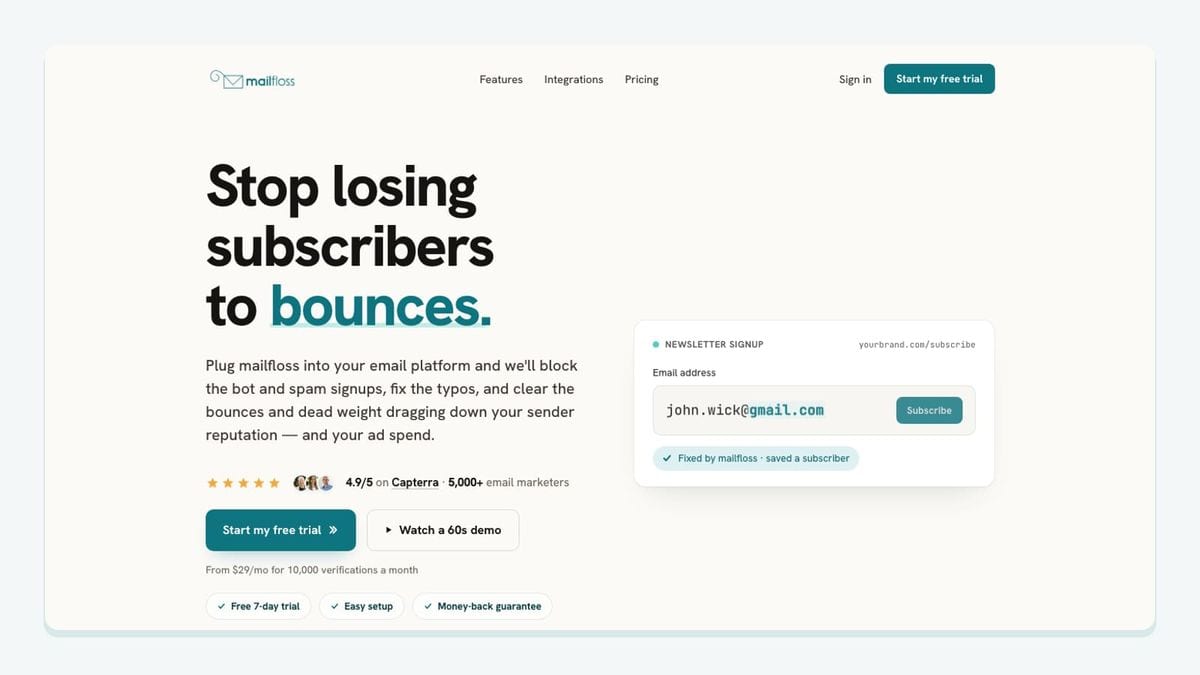
mailfloss is the best-fit iContact integration when the problem is not getting another contact into the account, but keeping selected newsletter lists healthier after contacts arrive. It is an email verification and automated list-cleaning tool for marketers. It connects to iContact to catch typos, reduce bounces, clean risky contacts, and protect list quality over time.
The setup is specific to the way the iContact connection works. Authorize iContact from the mailfloss dashboard, choose the newsletters you want watched, and let the first sync begin. Each connection can use its own cleanup rules. mailfloss then checks new iContact contacts on a schedule, can protect new signup flows in real time, and can write approved fixes or cleanup actions back without a CSV export-and-import loop.
The feature mix covers different moments in an iContact contact’s life:
- Typo Fixer recognizes safe typo patterns, such as a misspelled email domain, so a recoverable subscriber is not simply thrown away.
- Instafloss checks new signups where they enter the marketing system.
- Autofloss runs daily against new iContact contacts and applies the rules selected for that connection.
- Decay Protection re-verifies older iContact contacts on a schedule because an address can become risky after it joins.
- Custom Keep & Remove Rules let the team protect important contacts, block selected domains, and tune the outcome for an iContact connection.
The practical limit is control, not clairvoyance. Teams still need to decide whether an invalid or risky address should be held for review, cleaned automatically, used to update a field, or sent to another workflow. Start with the least destructive action that fits your process, inspect the first results, and then tighten the rule.
mailfloss also supports product and engineering workflows. Its real-time email verification API is a first-class REST API for developers and AI agents, so a team can verify an address in a custom signup flow before passing an accepted contact into iContact. That developer path complements the direct iContact email verification integration; it does not replace it.
Best fit: teams that want recurring, iContact-connected list hygiene instead of occasional CSV cleanup.
2. Gravity Forms: best for WordPress forms feeding a chosen iContact list
Gravity Forms is a practical choice when a WordPress form is the named source of new iContact subscribers. The supported connector mechanic is concrete: a submission from a specified Gravity Form can trigger an iContact action. The available iContact actions include creating a contact and subscribing a contact to a selected list.
Treat those as two checkpoints. If the workflow uses only Create Contact, the record can exist in iContact without joining the newsletter list expected by the marketer. A sturdier sequence is: trigger on the specified Gravity Forms submission, find or create the iContact contact, then subscribe that contact to the intended list. Map the form’s email field explicitly instead of trusting a similarly named field.
Gravity Forms can collect much more than an email address, but that does not mean every response belongs in iContact. Keep the email marketing payload small and deliberate: email, the name fields genuinely needed for personalization, and a source value that identifies the WordPress form. Sensitive or operational form responses should remain in the system that owns them.
The key test is a real submission through the published form, not a hand-built sample inside the connector. Confirm the result under iContact contacts and list membership. Also test a submission that omits a non-required name field so the automation does not fail just because a personalization value is blank.
Best fit: WordPress teams with a specific Gravity Form and a specific iContact list for that form’s opted-in subscribers.
3. Eventbrite: best for moving event attendees into an iContact follow-up list
Eventbrite fits when event registration is the source and iContact owns email follow-up. Zapier publishes templates that create new iContact subscribers from new Eventbrite attendees and subscribe iContact contacts to lists for new attendees. That is more useful than a vague “events integration” claim because it identifies both ends of the workflow.
Build the automation around one event or a clearly defined event group. When a qualifying attendee appears, create or locate the iContact contact, then subscribe that person to an event-specific list. An event-specific list is easier to audit than dropping every attendee into a broad newsletter audience. It also gives the campaign team an obvious place to send logistical updates or post-event content.
Registration is not universal permission for unrelated marketing. Preserve whatever consent and source details your process requires, and do not let the connector silently broaden the audience. If cancellations or refunds matter to the messaging plan, design and test that exception separately; a “new attendee” trigger alone does not describe the full attendee lifecycle.
Run the test with a controlled registration and inspect the iContact list, not merely the contact table. Check that the source field identifies Eventbrite and the event, that duplicate attendees do not create an unexpected mess, and that the follow-up automation uses the event list you intended.
Best fit: event teams that need a traceable Eventbrite-attendee-to-iContact-list workflow.
4. Leadpages: best for landing-page leads that need create-or-update logic
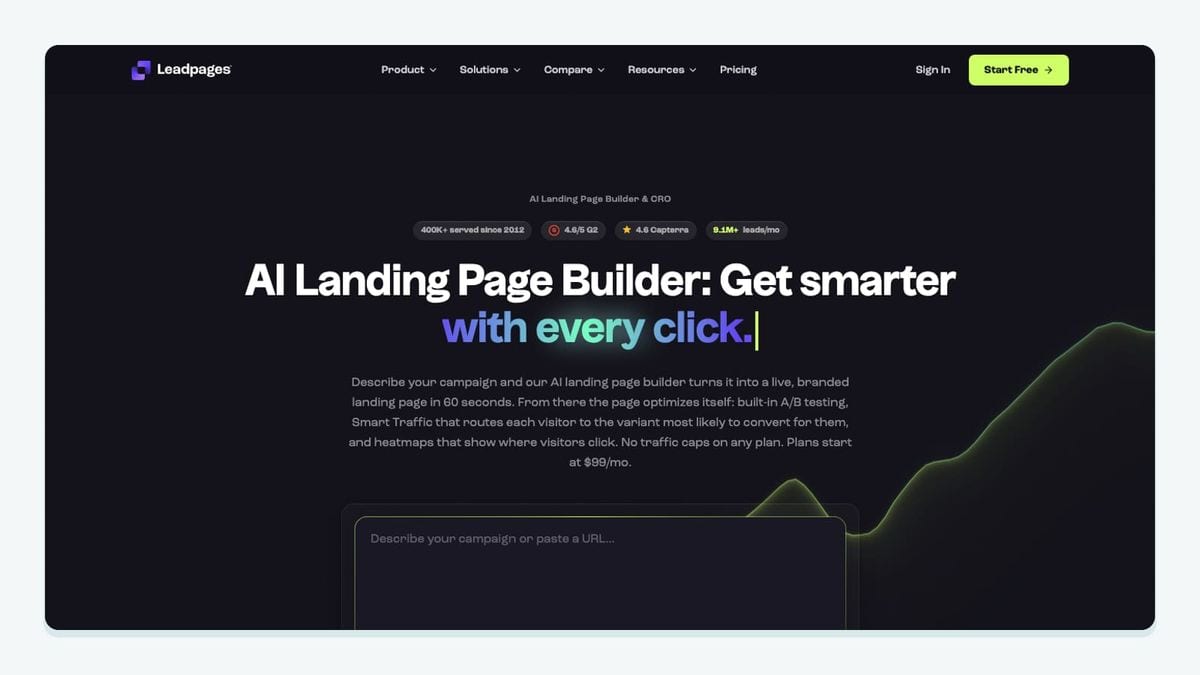
Leadpages is useful when a campaign landing page should feed a defined iContact audience. The available connector templates distinguish between creating an iContact contact from a new Leadpages form submission and updating an iContact contact from that submission. That distinction makes Leadpages a good fit for campaigns where returning leads are common.
Choose the action according to the page’s job. For a first-touch lead magnet, find or create the contact, then subscribe it to the matching iContact list. For a preference or profile form, find the existing contact and update only the approved fields. Do not use an unconditional create step when the same person is likely to submit several campaign forms.
Give each landing page a stable source value. “Leadpages” alone is not enough when three offers feed different iContact follow-ups. A page or campaign identifier lets the team trace why the contact entered a list and helps prevent the wrong welcome sequence from firing.
Test with both a new email address and an address that already exists in iContact. The second test exposes duplicate handling and field-overwrite behavior. Confirm list membership after both paths. If the integration updates the contact but never subscribes it to the campaign list, it has completed only half the intended job.
Best fit: acquisition teams using Leadpages forms for campaigns that require explicit create-versus-update behavior in iContact.
5. SurveyMonkey: best for sending surveys to new iContact subscribers
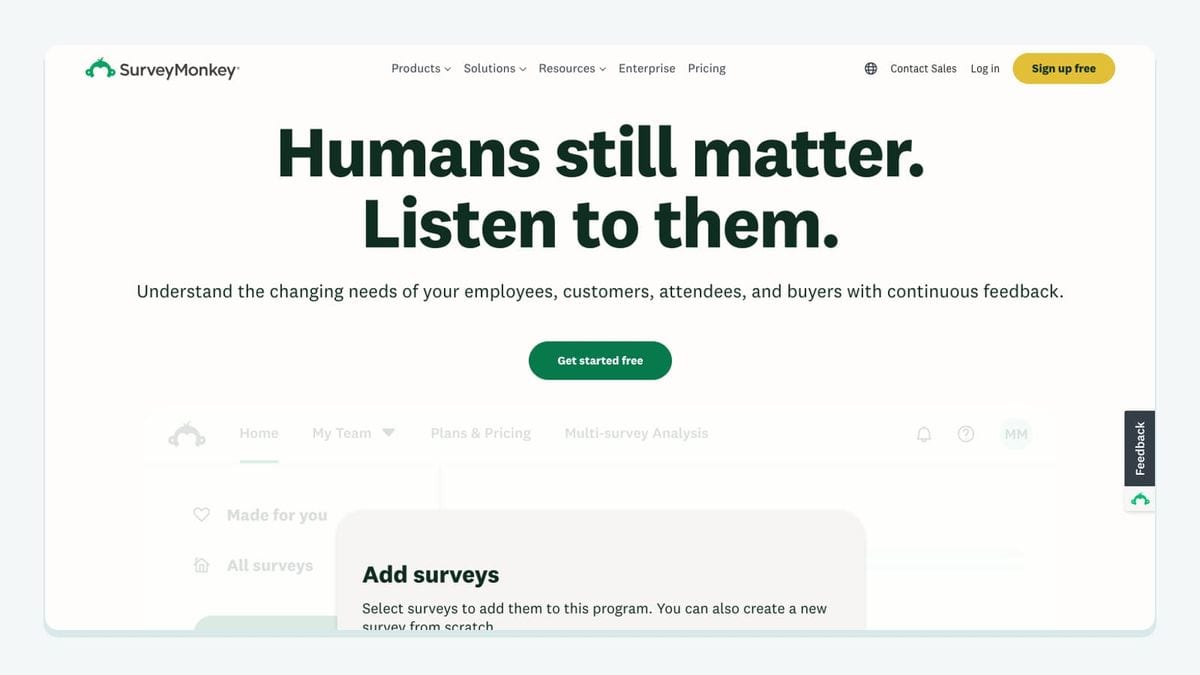
SurveyMonkey earns a place here for a workflow that runs in the opposite direction from most capture integrations. Zapier lists a template that sends SurveyMonkey survey invitations to new iContact subscribers. In that pattern, an iContact subscription event is the trigger and the survey invitation is the downstream action.
That direction is useful after onboarding, an event, or a customer milestone when the team wants structured feedback from a defined iContact list. It is not evidence that survey responses automatically update iContact. If response data must change contact fields or list membership, treat that as a separate workflow and verify the available trigger and mapping before promising it to the campaign team.
Keep the audience narrow. Trigger from the iContact list that genuinely should receive the survey, rather than every new contact in the account. Add a delay only when the survey’s timing calls for it, and make sure any normal iContact welcome sequence does not collide with the invitation.
The acceptance test is simple: subscribe a controlled contact to the chosen iContact list, verify that the correct SurveyMonkey invitation is generated, and check that unsubscribe or suppression behavior is respected by the sending process. Do not infer a two-way data sync from a one-way invitation workflow.
Best fit: research or customer teams that want a specific iContact subscriber event to trigger a SurveyMonkey invitation.
6. Zoom: best for webinar registrants entering an iContact nurture list
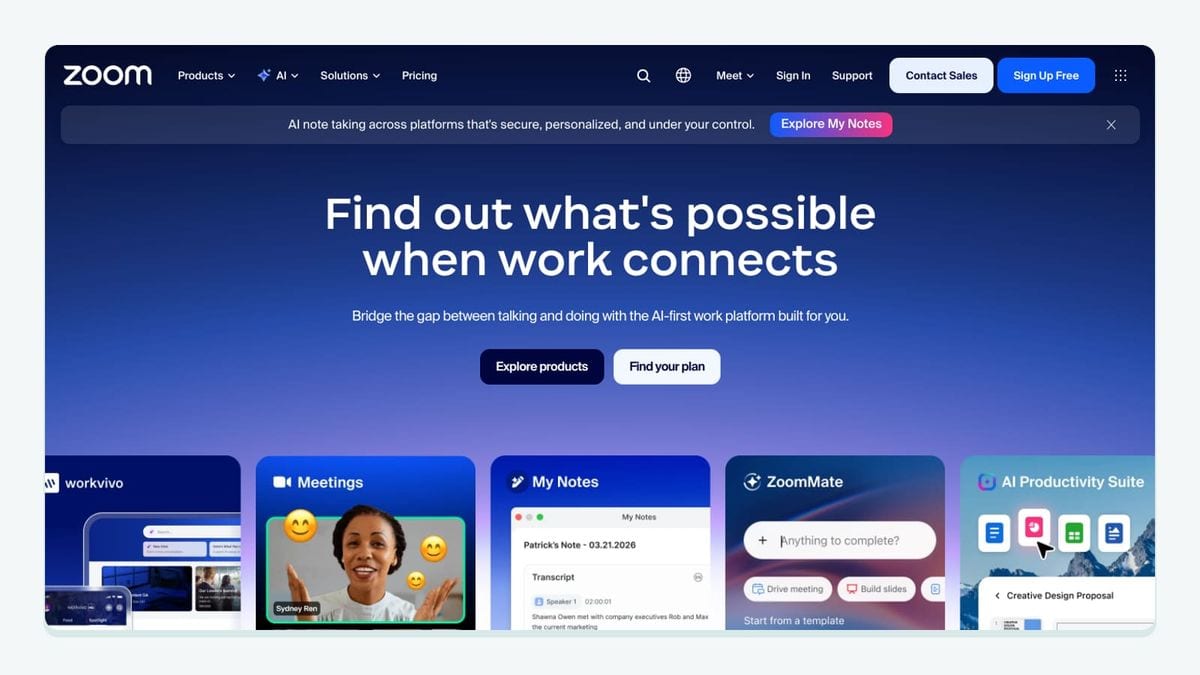
Zoom is a sensible integration when webinar registration is the entry point and iContact handles the nurture sequence. The published connector pattern adds Zoom webinar registrants to an iContact list. The important nouns are registrant, contact, and list: the workflow should preserve the webinar source while placing the person in the correct iContact audience.
Scope the trigger to the intended webinar. Then find or create the iContact contact and subscribe it to a webinar-specific list. Include a source or webinar identifier if the field model allows it. That makes it easier to distinguish a product demo registrant from a training attendee when both exist in the same iContact account.
A registrant workflow does not automatically describe attendance. If post-webinar messaging should differ for attendees and no-shows, the team needs separate events or filtering that can support that decision. Do not label everyone an attendee merely because the integration received a registration.
Test registration, list membership, and the first iContact automation step. Also decide what should happen when a person registers with an address already stored in iContact. Updating the existing contact and subscribing it to the webinar list is usually clearer than creating a duplicate path.
Best fit: webinar teams that want Zoom registrations routed to a named iContact list with source-aware follow-up.
7. BigCommerce: best for separating customers from general iContact subscribers
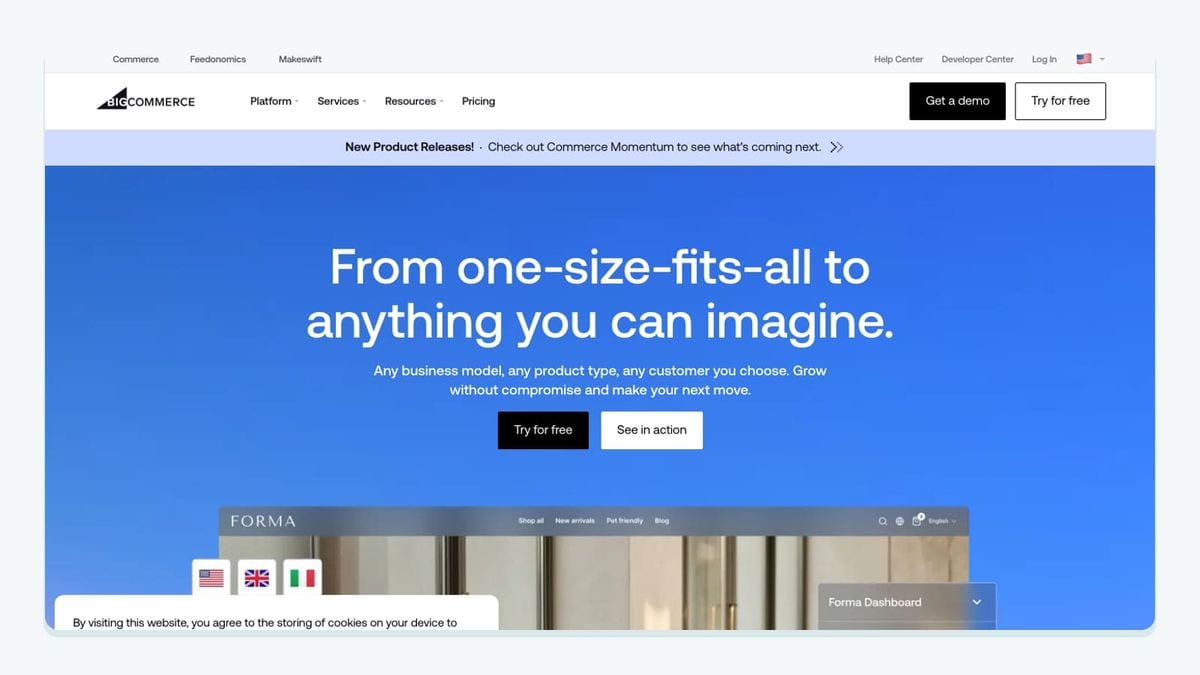
BigCommerce fits ecommerce teams that want new customers available for lifecycle email in iContact. Zapier publishes an automation pattern that adds new BigCommerce customers to a list in iContact. The list destination is the useful part: customers can enter an audience distinct from general newsletter subscribers.
Use the customer event as the trigger, then find or create the iContact contact and subscribe it to a customer-specific list. Map only the fields the email program needs. Do not copy an entire commerce record into an email platform merely because the connector offers fields.
Keep transactional and marketing purposes separate. The integration should not be treated as proof of marketing permission, and an iContact marketing list should not become the system of record for orders. Preserve the commerce platform as the owner of order data while iContact receives the contact and segmentation information required for approved campaigns.
Test with a controlled customer record, verify the iContact contact, and inspect membership in the customer list. If an existing newsletter subscriber later becomes a customer, confirm that the workflow adds the existing contact to the new list rather than losing the customer signal or creating an avoidable duplicate.
Best fit: BigCommerce teams that want customer lifecycle audiences separated cleanly inside iContact.
Which iContact integration stack should you choose?
Choose the smallest stack that covers a real contact path. Gravity Forms or Leadpages can own form capture. Eventbrite or Zoom can own registration. BigCommerce can own the customer event. SurveyMonkey can act after an iContact subscription. mailfloss can sit across the resulting iContact newsletters as the recurring verification and cleanup layer.
Do not install two tools for the same trigger simply because both appear in a directory. Name the source event, destination list, timing, and failure owner first. Then test the complete route with a controlled record.
If you already have a historical file that needs a one-time check, use the workflow to verify an existing email list. If the ongoing problem is that new and older iContact contacts can become risky over time, recurring cleaning is the better fit. Review mailfloss pricing when you are ready to compare that layer commercially.
Frequently asked questions
Which iContact integration is best for automated list hygiene?
mailfloss is the best-fit option when you want recurring verification rather than another source of contacts. It watches selected iContact newsletters, checks new and older contacts, fixes recognized typos, and applies your chosen cleanup actions. Developers and AI agents can also use the first-class real-time mailfloss REST API.
Do I need to create a contact and subscribe it to an iContact list?
Often, yes. iContact exposes “Create Contact” and “Subscribe Contact to List” as separate automation actions. A workflow that creates the contact but skips list subscription may leave that person outside the intended newsletter audience. Test both the contact record and its list membership before publishing the automation.
Can mailfloss check new iContact signups in real time?
Yes. Instafloss can check new signups where they enter the marketing system, while Autofloss runs against new iContact contacts on a daily schedule and Decay Protection re-verifies older contacts. Choose the selected iContact newsletters and cleanup rules in mailfloss, then confirm the resulting actions match your review or removal policy.
How should I test an iContact integration before turning it on?
Submit one controlled record, confirm the iContact contact was created or updated, verify membership in the intended list, and inspect any downstream welcome message or automation. Use a recognizable test value, then remove it. A successful connector run is not enough if the contact landed in the wrong list or skipped subscription.
We write from the practical side of email list cleaning: what helps marketers keep real subscribers, reduce bounces, and avoid turning hygiene into another recurring chore.